How to improve your Google Page Speed score in an Elementor WordPress site

The Google Page Speed score is one of the values people often use to check their sites speed and performance. Many people complain that it is hard to get a high score with WordPress if you use a page builder like Elementor.
But as Elementor is just a tool to build the page — yes it produces HTML code you can change easily, more on that later — so it is in the hand of the developer to increase the speed.
In this post we will go through some server settings, WordPress plugins and things you can do during planing of the page to improve the score.
Hosting

One major part of performance optimization is your hosting. Don’t go with the cheapest option if you want to have a fast site. Your WP memory limit should at least be 256MB and Elementor even recommends 512MB+. One hoster with good performance is all-inkl (German provider) or IONOS.
WordPress plugins

WordPress has a big directory of plugins for all kind of tasks you’ll need for your web development. This is a list of the plugins I’ve used and found out the be very helpful to generate fast pages at the end. Feel free to test other alternative plugins and compare the results. It depends on your hosting or general setup which is better for you.
Elementor
Of course the first plugin you’ll need to install is Elementor itself. You can use the free version right from the WordPress plugin directory, all of the following steps will work. If you are going to create a bigger project and need custom templates then you have to go with Elementor Pro.
Autoptimze
The Autoptimize plugin will minify your HTML, CSS and JS. This is very useful because it reduces the file size of your HTML file and you can even aggregate multiple JS or CSS files into one. Use this feature with caution as it might produce JS errors if the files are included in a wrong order. If you enable the feature make sure to test the page in a private tab and check the devtools.
WP Super Cache
All pages in your WordPress page are PHP files that are generated on the fly by your server. To reduce that server load you can should use a caching plugin that generates and serves static HTML files. WP Super Cache is one of those plugins. It takes your dynamic PHP pages and produces static HTML files that will be send to the visitor.
If you use Lightspeed hosting you should use LiteSpeed Cache.
Custom Fonts
Elementor makes it easy to select different fonts from Google Fonts and use them in your page. Thanks to the DSGVO/GDPR you shouldn’t use that feature and use local fonts instead. Custom Fonts makes it easy to add local fonts that you can use with Elementor. This will also not make external requests which helps your Page Speed score again.
Theme

The best options are Astra and Hello Elementor. While Hello Elementor is a bare-bone first class theme by Elementor itself you can also use Astra with their starter templates that are optimized for Elementor. One advantage of Astra: it comes with an easy header and footer builder that works fine for most small pages especially if you use the free Elementor version. If you want to build bigger header/footers you can also use the free Elementor Header & Footer Builder plugin. If you have Elementor Pro it is included.
Again: there are many other themes out there and you can of course buy themes online. Test them and see if they work with Elementor and don’t produce unneeded code or JS files.
Another good option is to create a custom theme or a child theme so you can change CSS or edit the functions.php file. Astra has it’s own Astra Child Theme Generator that makes it very easy to get a ZIP that you can install in your WordPress.
Settings
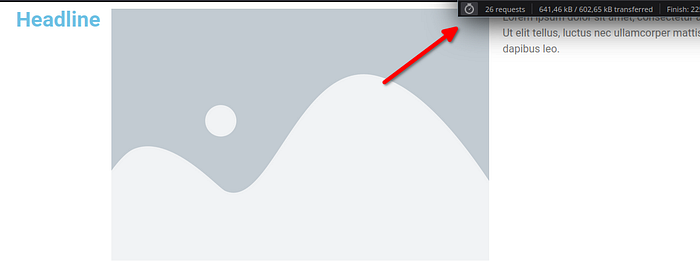
To test everything I use a simple Hello Elementor page with a headline, image and text widget. Without any changes it will make 26 requests and it’s 641kb in size:
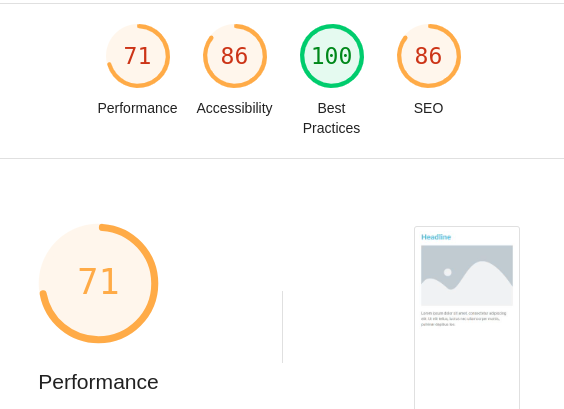
And the mobile Page Score is a 71
Elementor settings
At first we will look in the Elementor — Settings.
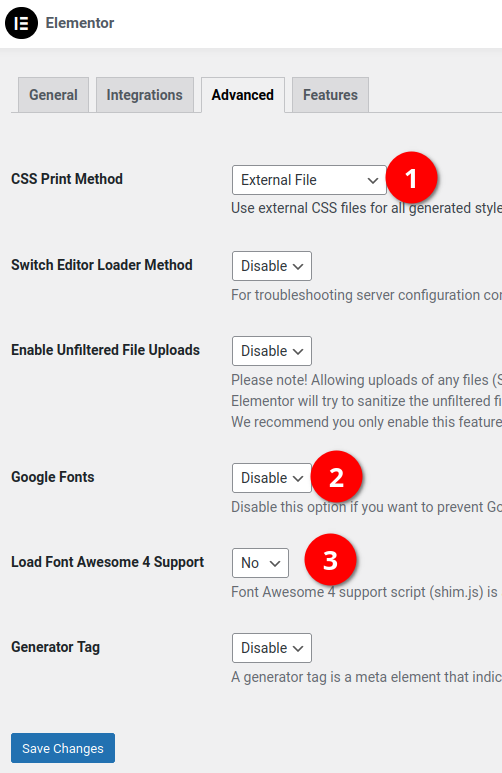
CSS Print Method (1) should be “External file” (default) and make sure you disable Google Fonts (2) and disable Font Awesome 4 Support (3).
These settings will already bring us down to 20 requests and 457kb:

If you don’t want to use the “Global design” settings (1) and want to use the “Theme style” settings (2)
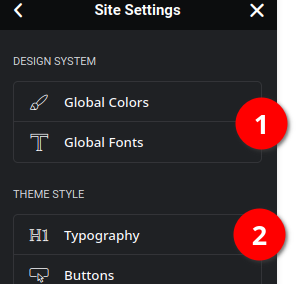
you can disable the “Default Colors” and “Default Fonts” setting
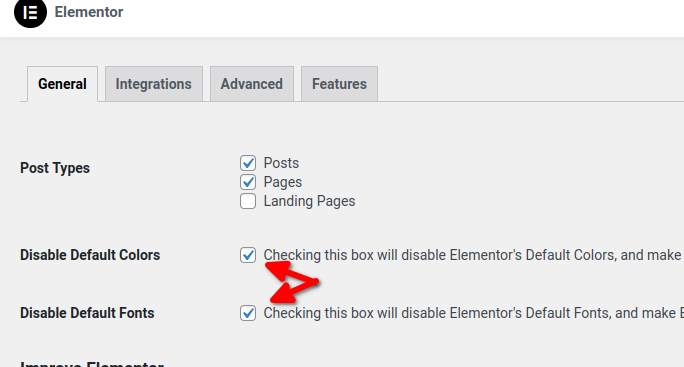
and reduce the requests by 1 file. It won’t include the “globals.css” file.
Plugin settings
At first we will enable “Autoptimze” and look at its settings. By default it will already enable some.
For JavaScript we will use the more user friendly setting and do not aggregate the files (yet):
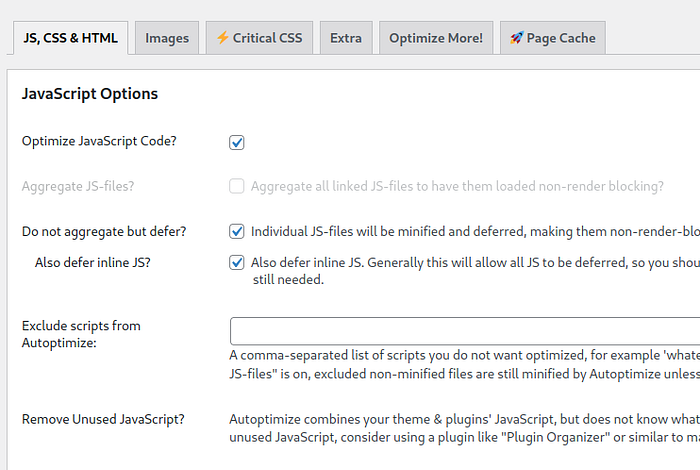
This way it will only minify and defer them. You can disable “do not aggregate but defer” and enable “Aggregate JS files” if you have many JS files and make less requests. This setting can introduce some issues so make sure to test it! For our page we will keep “defer”.
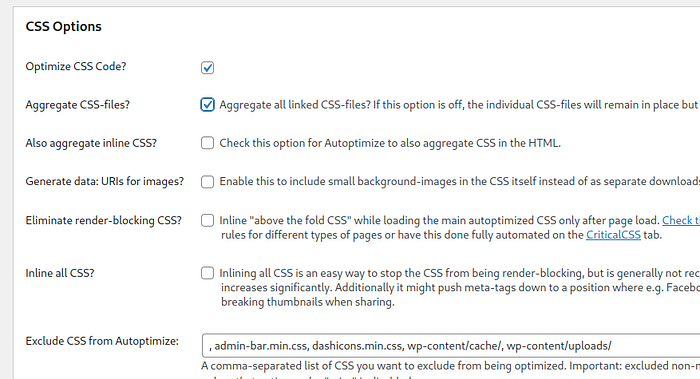
For the CSS Options we will enable the “Aggregate CSS-files” option as that most of the time works right away. Make sure to check your page and see if all styles are still applied in the correct order:
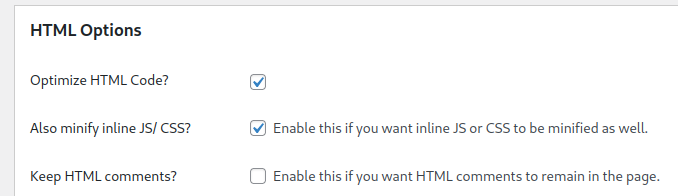
In the HTML Options section we enable minify inline JS/CSS:
One last section we have to check is under “Extra”. Make sure you select “Remove Google Fonts” as an extra check to remove them and remove the WP emojis unless you really need them (e.g. in comments):
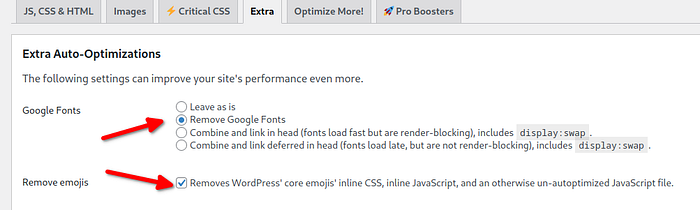
Those settings will bring us to 15 requests, 442kb (315kb transferred!)

Now it is time to activate “WP Super Cache” and change some settings.
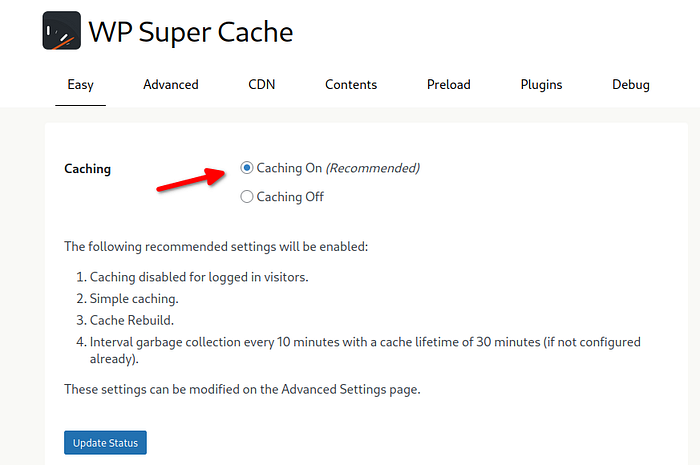
Make sure these settings are enabled:
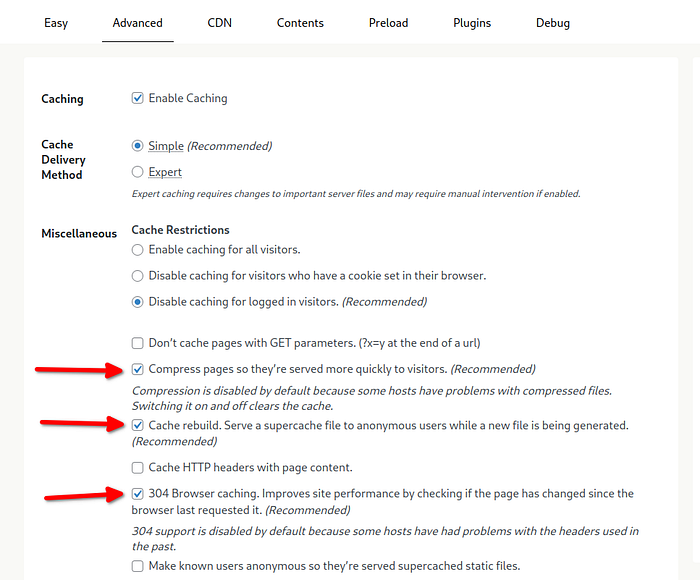
and a bit further down:
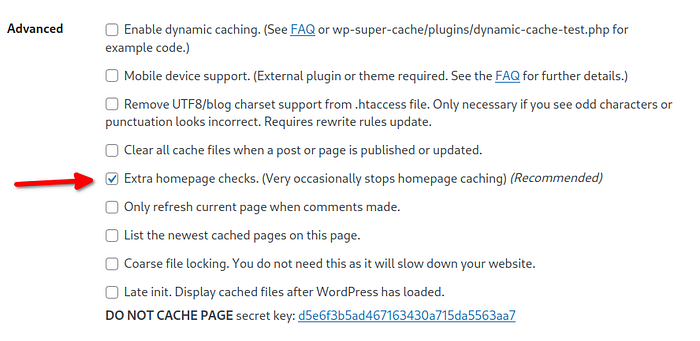
Careful: if you have trouble loading a page for the first time and it will show an error and it works the second time you load the page: disable the first setting “Compress pages”. Some hosts have issues with that.
Checking our requests again we can see that we are still at 15 requests but the transferred size went down to 300kb:

If you check the Page Speed Score again you can see an improvement by 20 points!
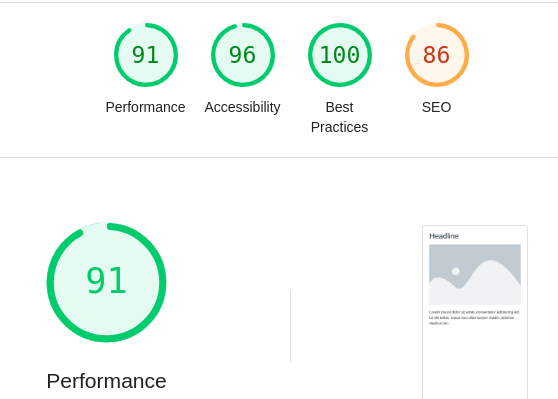
With the “Aggregate JS files” it will show 95.
Content
Structure
Before you start your web page you should make some thoughts who you want to structure the content and not just drag in widget after widget. This will most of the time result in a bad DOM structure or “too many nested DOM elements”.
Inside Elementor you definitely use the container layout, so if you have an older page or template make sure to transfer your widgets from sections to containers. It not only make the workflow easier but also reduce the DOM size and nested elements. Check the Elementor Container Performance page for more details.
Be smart with the way you combine your widgets. Don’t just use container in container. For example if you want to make a two column layout you don’t need to use the 2-column preset and add an item in the left column and on in the right:
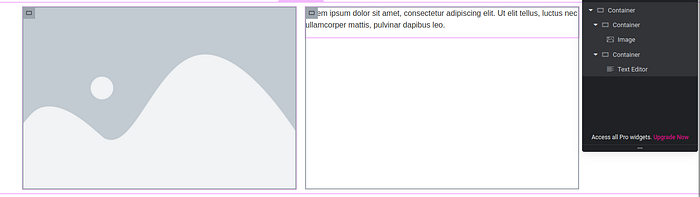
You have an outer horizontal container with two sub containers and one has an image and the other one a text. In comparison you can just use this structure:
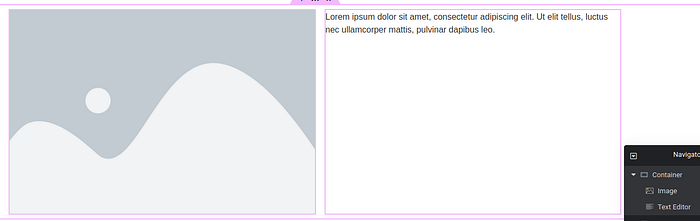
and add the image and text into the outer container (set to horizontal).
Custom widgets
If you have complex layouts and some PHP knowledge I highly recommend checking out the Elementor Developer documentation and create custom widgets! Inside the render() method you can fully customize your output HTML and only use the structure you’ll need.
Images
Putting images into a page is easy, right? Yes, but make sure to use the correct “image resolution”. Don’t just use the default or full resolution if it won’t be bigger then 512px! Use the correct setting and it will reduce transferred image size.
You can go to the WP “Settings — Media” page to adjust the size or even add custom sizes (check out quadlayers tutorial).
Further improvements
If you really want to dig a bit deeper and remove some other not needed code files or adjust some Apache settings you can look at the next code blocks. Only use those if you are sure that you don’t need it and you are using Apache.
Remove jquery-migrate
Most of the current plugins or themes don’t need jquery-migrate anymore. It is still bundled in WP and you can add this to your functions.php to remove it:
function remove_jquery_migrate( $scripts ) {
  if (!is_admin() && isset($scripts->registered['jquery'])) {
    $script = $scripts->registered['jquery'];
    if ($script->deps) {
      $script->deps = array_diff($script->deps, array('jquery-migrate'));
    }
  }
}
add_action( 'wp_default_scripts', 'remove_jquery_migrate' );
Removes one request and around 20kb.
Apache settings
If your Google Page Speed result says that some files need a higher caching valuer or gzip is missing you can add these two blocks to your .htaccess file:
<IfModule mod_expires.c>
  # Turn on the module.
  ExpiresActive on
  # Set the default expiry times.
  ExpiresDefault "access plus 2 days"
  ExpiresByType image/jpg "access plus 12 month"
  ExpiresByType image/svg+xml "access 12 month"
  ExpiresByType image/gif "access plus 12 month"
  ExpiresByType image/jpeg "access plus 12 month"
  ExpiresByType image/png "access plus 12 month"
  ExpiresByType text/css "access plus 12 month"
  ExpiresByType text/javascript "access plus 12 month"
  ExpiresByType application/javascript "access plus 12 month"
  ExpiresByType image/ico "access plus 12 month"
  ExpiresByType image/x-icon "access plus 12 month"
  ExpiresByType text/html "access plus 600 seconds"
</IfModule>
enable gzip compression:
<ifModule mod_gzip.c>
mod_gzip_on Yes
mod_gzip_dechunk Yes
mod_gzip_item_include file .(html?|txt|css|js|php|pl)$
mod_gzip_item_include handler ^cgi-script$
mod_gzip_item_include mime ^text/.*
mod_gzip_item_include mime ^application/x-javascript.*
mod_gzip_item_exclude mime ^image/.*
mod_gzip_item_exclude rspheader ^Content-Encoding:.*gzip.*
</ifModule>

<IfModule mod_deflate.c>
AddOutputFilterByType DEFLATE text/plain
AddOutputFilterByType DEFLATE text/html
AddOutputFilterByType DEFLATE text/xml
AddOutputFilterByType DEFLATE text/css
AddOutputFilterByType DEFLATE application/xml
AddOutputFilterByType DEFLATE application/xhtml+xml
AddOutputFilterByType DEFLATE application/rss+xml
AddOutputFilterByType DEFLATE application/javascript
AddOutputFilterByType DEFLATE application/x-javascript
</IfModule>
Conclusion
As you can see it is not that difficult to improve your Google Page Speed score in your Elementor page.
Of course if your page is larger and more complex it will take some more work but the previous settings and plugins will already help you to get started and improve it by a lot.
If you are stuck and your score won’t improve you should follow the tips & tricks the Page Score will show:
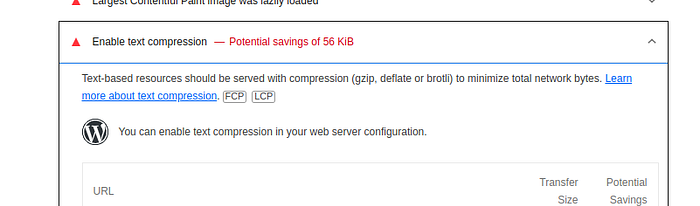
Click on those links, read and follow their instructions.
Good hosting is your base structure, good page structure and implementation will help and using the right plugins with the right settings will bring your up to 90+.